Documentation / Documents
Read a document and its earlier versions
Identify the version you are reading, inspect its history and return to the current document without confusing viewing with restoring.
Before you start
Open the document you want to review in its reader. You need permission to read it. This guide covers identification and history: it does not edit text, restore a version or change task state.
Screenshots show the actual reader, header and history with a fictional document named “Plan de contenidos · Demo”. Versions, dates and content are examples rather than a client document. The interface is in Spanish and its visible controls are quoted below.
1. Confirm which document you are reading
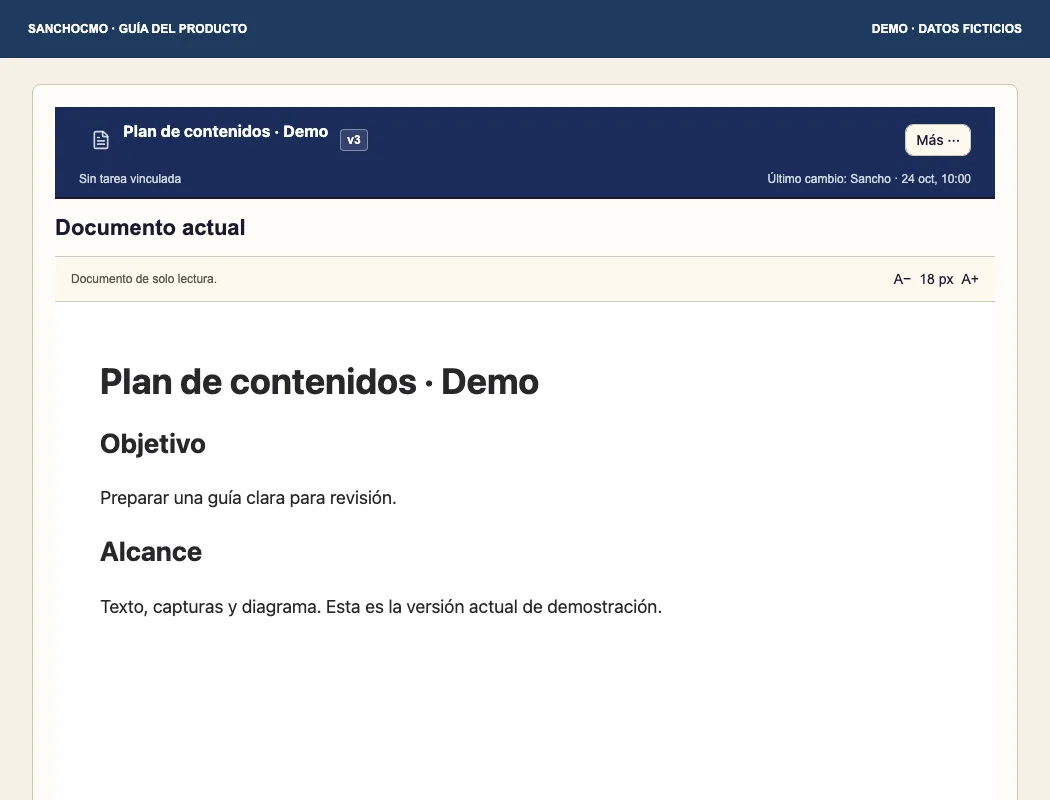
- Check the title and version shown in the header where available.
- Read the last-change information and linked task where one exists. The example says Sin tarea vinculada (No linked task); no task was invented to fill the view.
- To confirm location, open Más ··· → Detalles (More → Details). Compare its path and format with the document you intended to review.
A version number describes a document revision. It does not mean the content is approved or published. Review any linked task state separately.
2. Open version history
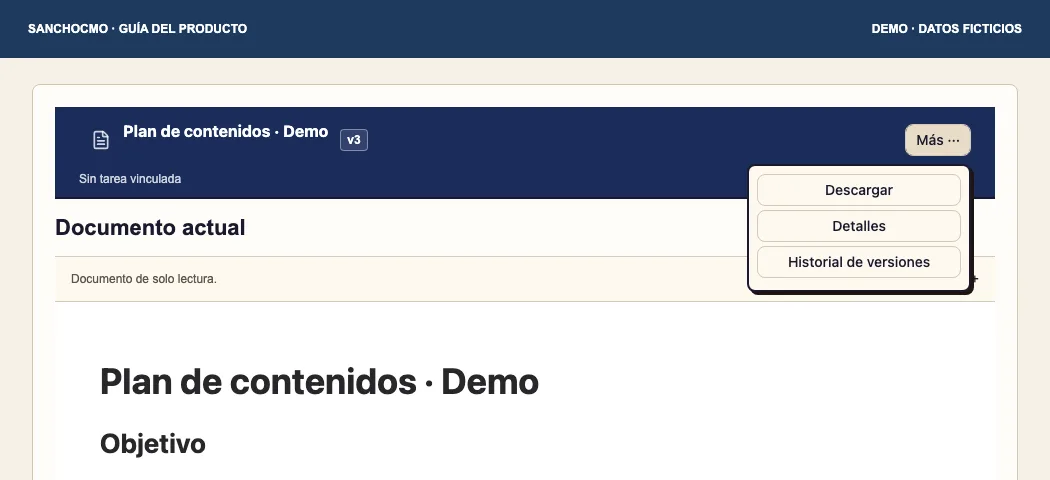
- Select Más ··· in the header.
- Select Historial de versiones (Version history).
- Review version numbers and dates. Read the reason or revision information where available.
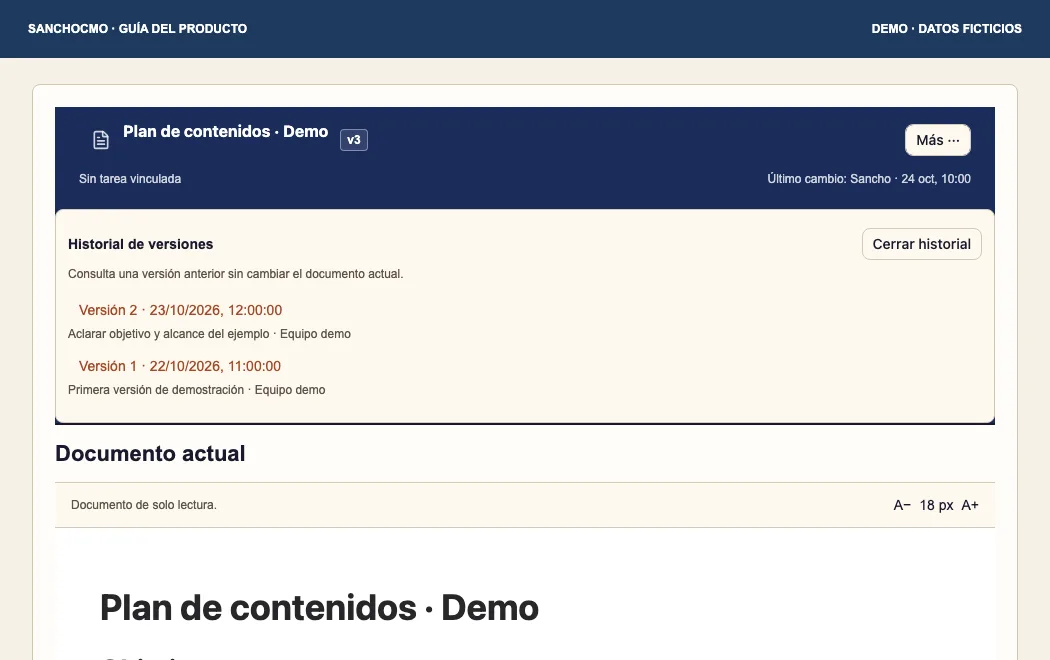
If Versiones anteriores (Earlier versions) appears, use it to browse further back; Más recientes (More recent) returns to the recent set. These controls only appear when more results can be browsed.
3. Read a particular revision
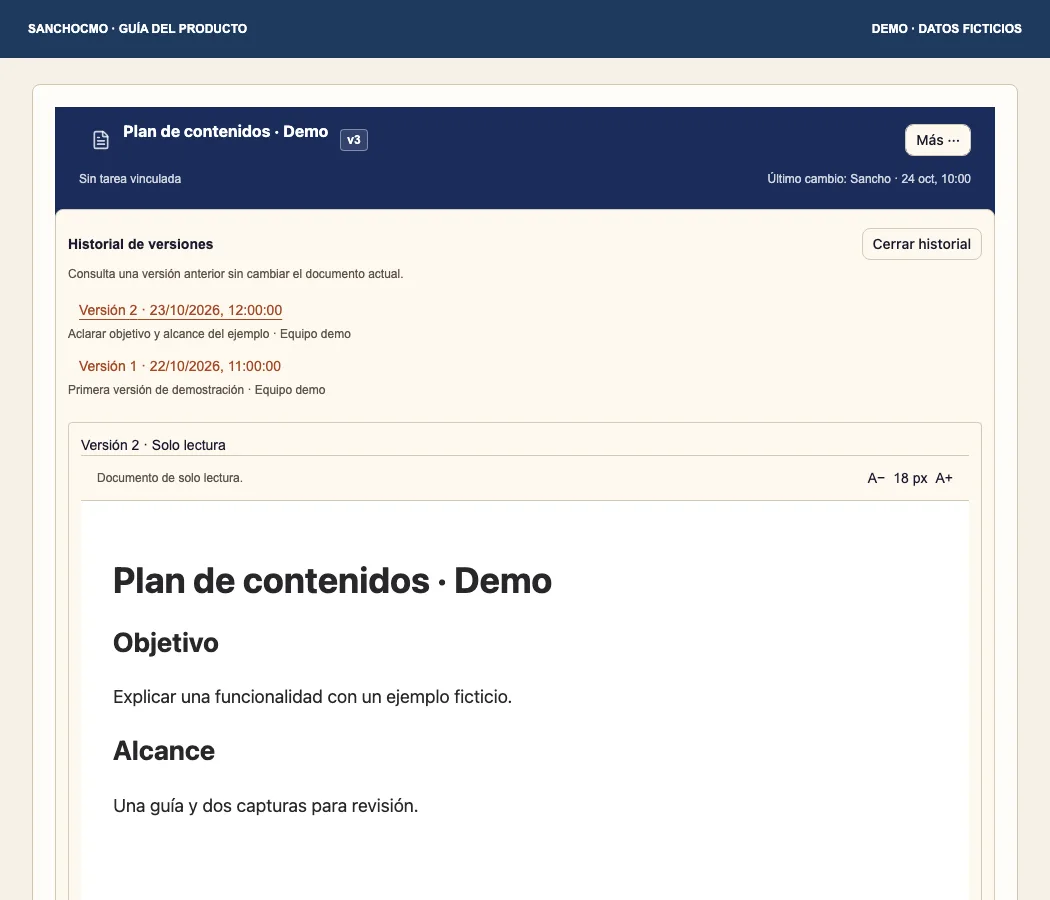
Select the number and date of the version you want to read. Check its Solo lectura (Read-only) label and read the content. Use A− and A+ to adjust Markdown reading size if needed.
The current document and historical revision can appear on the same screen. Use their labels to distinguish them: the header describes the current document and the history panel identifies the selected revision.
4. Return to the current document
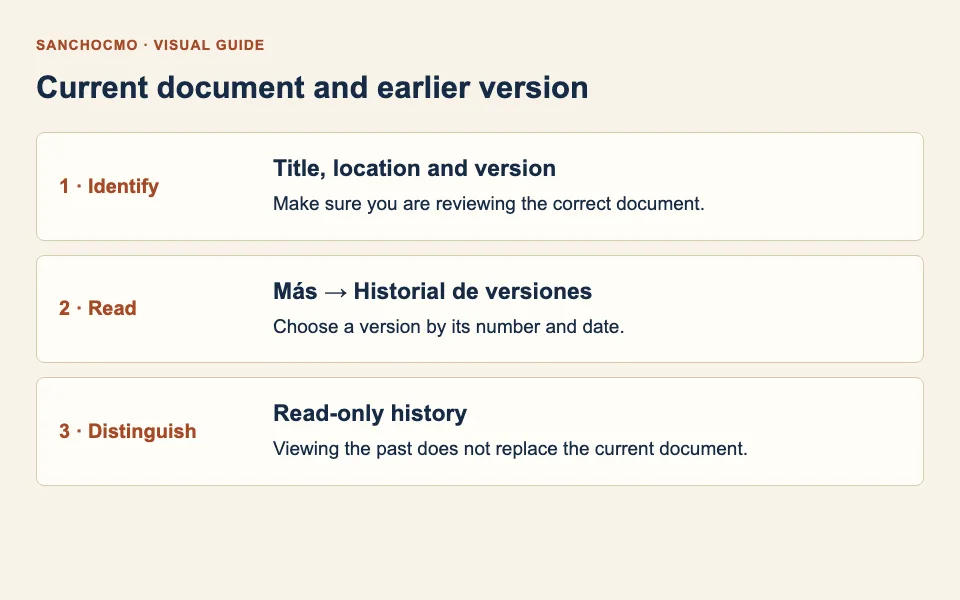
Select Cerrar historial (Close history) to close the history panel and continue with the current document. Opening an earlier version does not restore it or replace the current text.
If you need content corrected or recovered, make a specific request about the current document: identify what should change and the revision to use as a reference. This guide does not establish an automatic restoration workflow.
When history is empty or a version fails to load
- No saved versions yet: this view has no revisions to show. That does not prove the document was never changed.
- History or revision cannot be read: keep the version number and visible message when requesting help. Do not assume that an earlier loaded panel is the newly requested revision.
- Version information is missing: compare the title and location without inventing a number.
- You need to accept delivery: review the task and result using the tasks and agents guide.
Check your result
You can identify the document and current version you reviewed, the historical revision you opened and which differences support your request. The current document remains unchanged after viewing history.