Documentation / Connections
Distinguish connection, collection and data destination
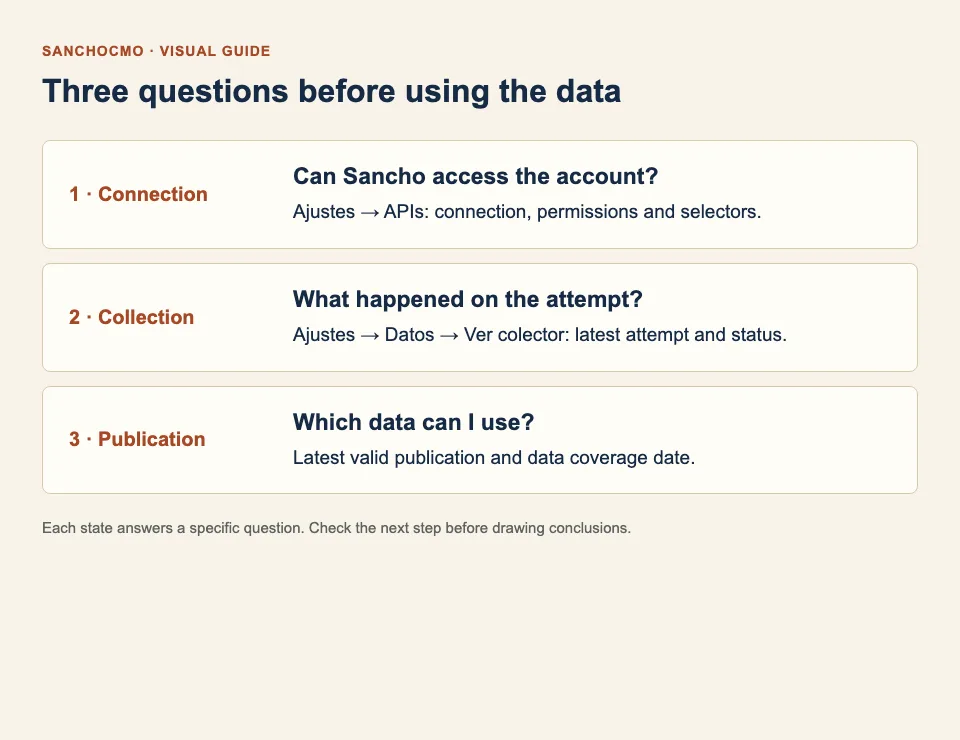
Check whether a tool has access, what happened when its data was collected and which dates the usable data covers.
What you will check
Use this guide to review an already configured source. You need access to workspace settings and connection information. It does not cover connecting a new account, changing provider permissions or enabling a schedule.
Screenshots use actual product components with fictional account data. Dates and the 120 rows are examples. Controls are shown in Spanish and quoted below. The tool name identifies a connection type, not a real account.
1. Review the connection under APIs
- Open Ajustes → APIs (Settings → APIs).
- Search for the tool by name. If filters are active, check that they are not hiding the connection.
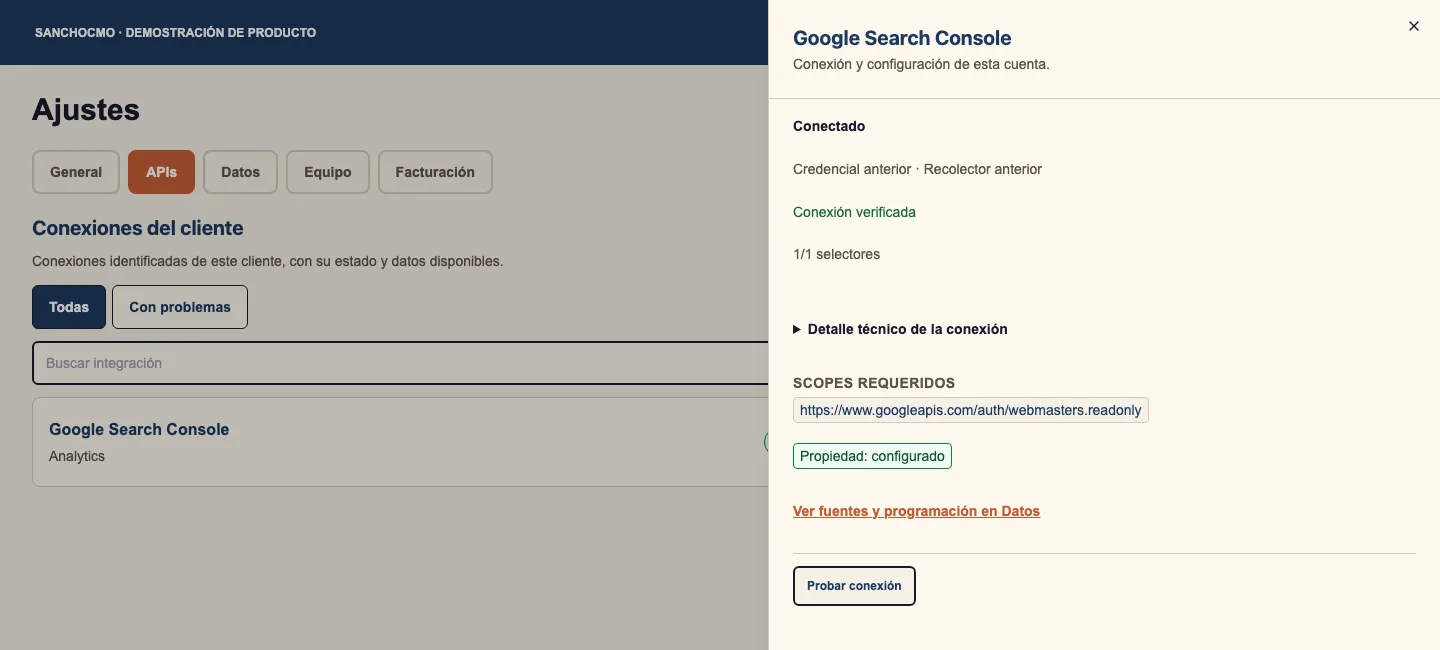
- Read the status and select Ver detalles (View details) to inspect the connection and its configuration.
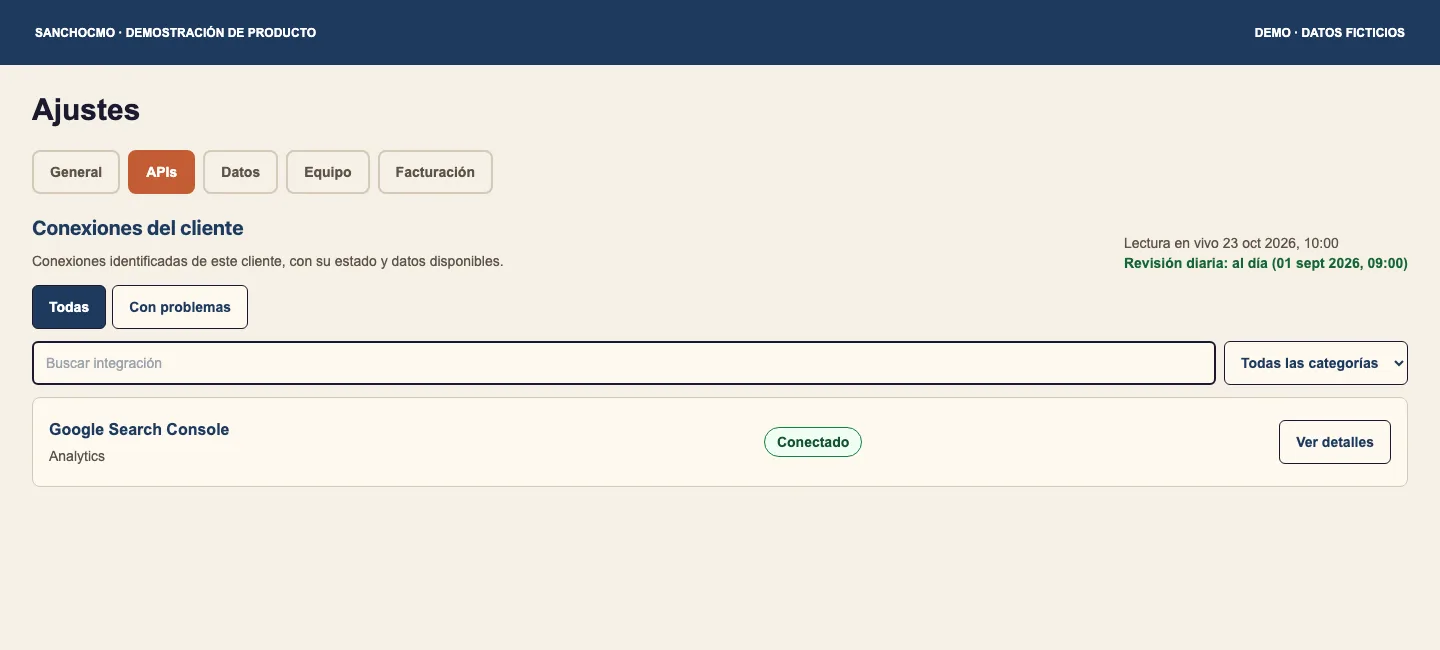
Conectado describes access for that integration. It is not enough to conclude that recent data has been collected or that a report already contains it.
2. Open the collector for the source
- Close the detail panel and select Datos (Data). Alternatively, use Ver fuentes y programación en Datos from the connection detail.
- Find the source. A tool can expose data at different scopes; this example shows Por búsqueda y página (By query and page).
- Select Ver colector (View collector), then Estado de los datos (Data status).
APIs answers whether the tool can be accessed. Datos brings together sources, collection and the state of published data. Check the specific source required by your analysis.
3. Read the dates before using the data
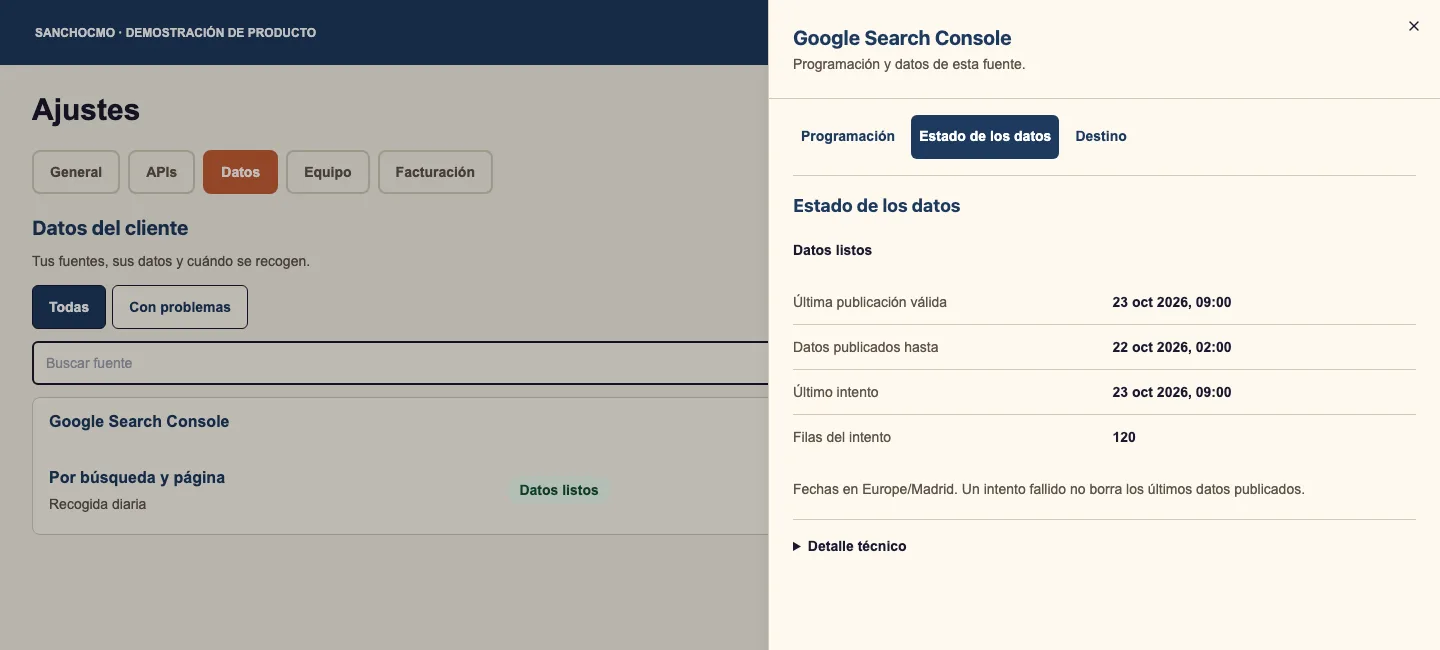
- Última publicación válida (Latest valid publication): when valid data was last published for use.
- Datos publicados hasta (Data published through): the date covered by the published information. Use it to check whether the period you need is available.
- Último intento (Latest attempt): when collection was attempted. It may be newer than the valid publication.
- Filas del intento (Rows in the attempt): volume reported for the attempt, rather than visits, sales or business outcomes.
In this example, publication took place on 23 October at 09:00, but data only extends through 22 October at 02:00. It cannot describe all activity on 23 October. The screen also states the time zone used for its dates.
4. Check the destination when needed
Inside Ver colector, select Destino (Destination) to read whatever destination information the interface provides. To establish whether a particular report uses that data, then check the report and its period.
A valid publication establishes that data has been published for this source. On its own, it does not prove that every screen or report has refreshed. If destination information is absent, keep that uncertainty visible when asking for help.
When there is an error or data is missing
- Connected but old data: compare the latest attempt, latest valid publication and coverage date. Access can work while collection is pending or failing.
- The latest attempt failed: check for an earlier valid publication. A later failure does not automatically remove previously published data.
- No valid publication or date: do not treat the report as current. Identify the source and period that need checking.
- The tool is missing: clear filters and confirm the workspace and your permissions with its administrator.
Do not disconnect and reconnect an account just to diagnose a delay. If you need help, share the source name, state, dates and visible message through an authorized channel, without credentials.
Check your result
You can separately explain whether there is access, what the latest attempt was and which dates valid data covers. Before using a report, check its source and period too. This establishes whether you have suitable data for the decision you need to make.