Documentation / Documents
Comment on a document and resolve its review
Anchor feedback to a passage, reply in its thread and distinguish resolving a comment from editing or approving the document.
Before you start
Open the current document with permission to comment. The reader supports reviewing content without editing it directly. Available controls depend on access and comment permissions; historical versions may be read-only.
Screenshots show the actual reader and comment layer with fictional text, authors and threads. A reply draft was opened and cancelled. No real work comments were submitted or resolved. The interface is shown in Spanish.
1. Locate the feedback
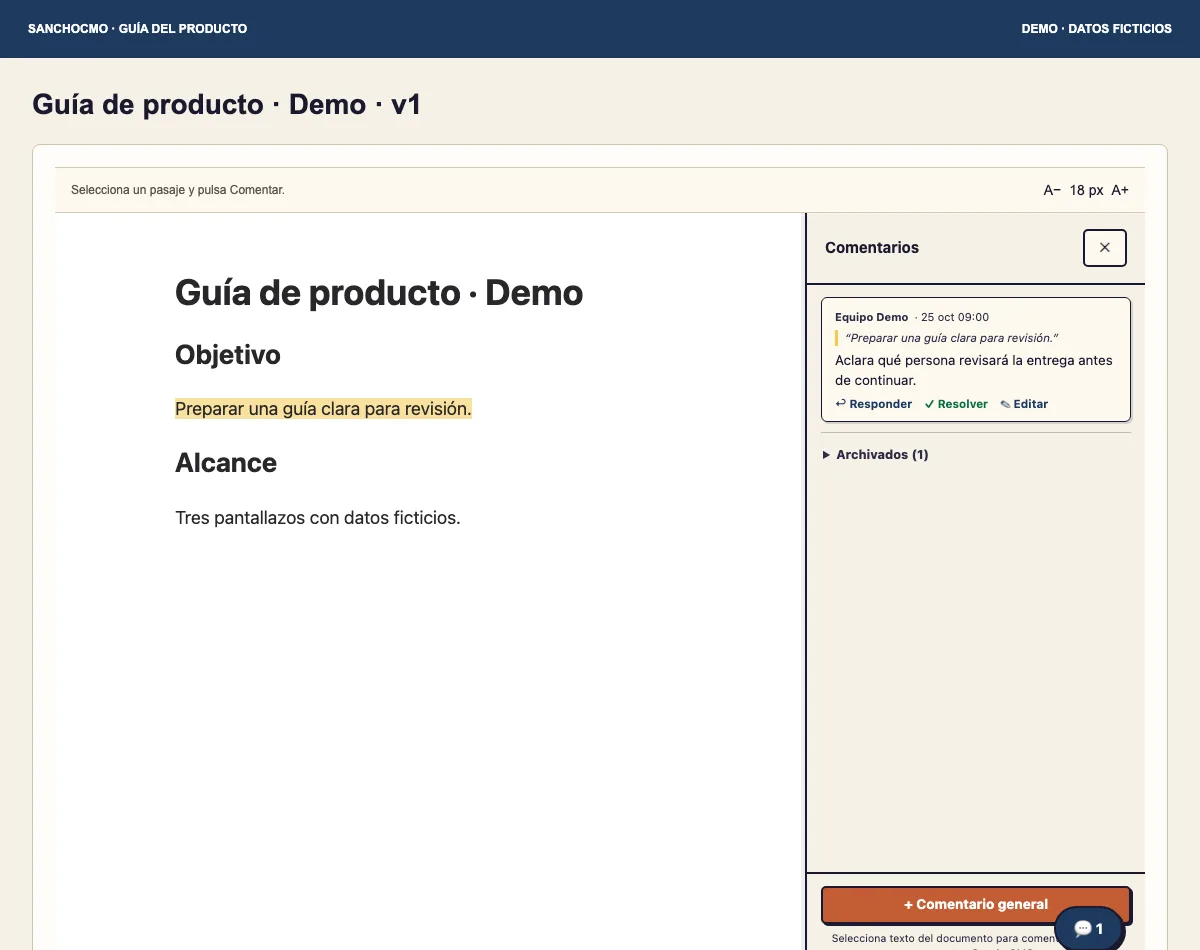
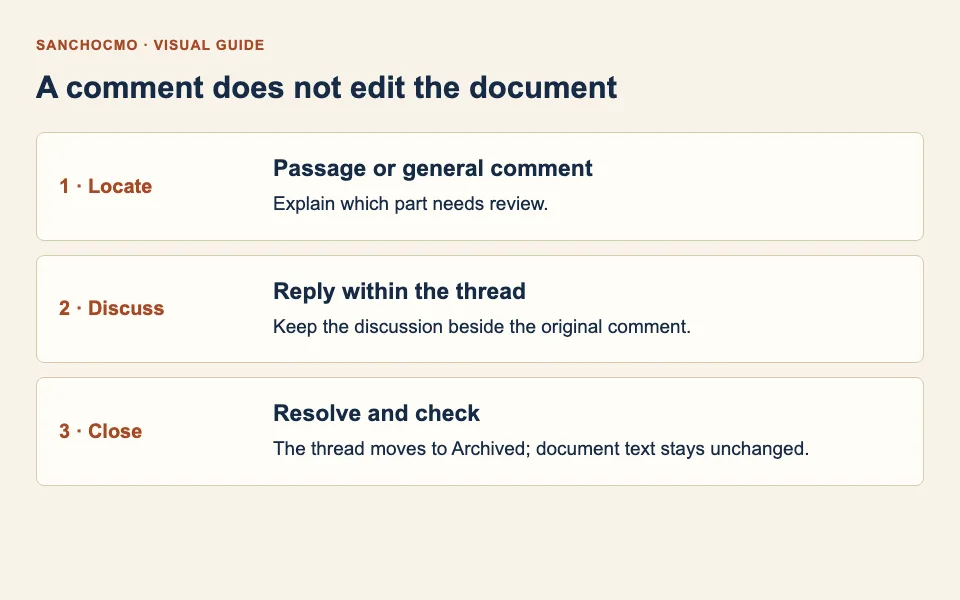
- For feedback on a phrase, select it in the document and choose Comentar (Comment) when it appears.
- For document-wide feedback, open Comentarios (Comments) and select Comentario general (General comment).
- Explain what needs review and what change or check you expect. Confirm the quoted passage before submitting.
Useful feedback states a specific request. “Identify who will review the delivery before continuing” is clearer than “this is unclear”. Check the visible result after submission; text entered into a form is still a draft.
2. Reply within the thread
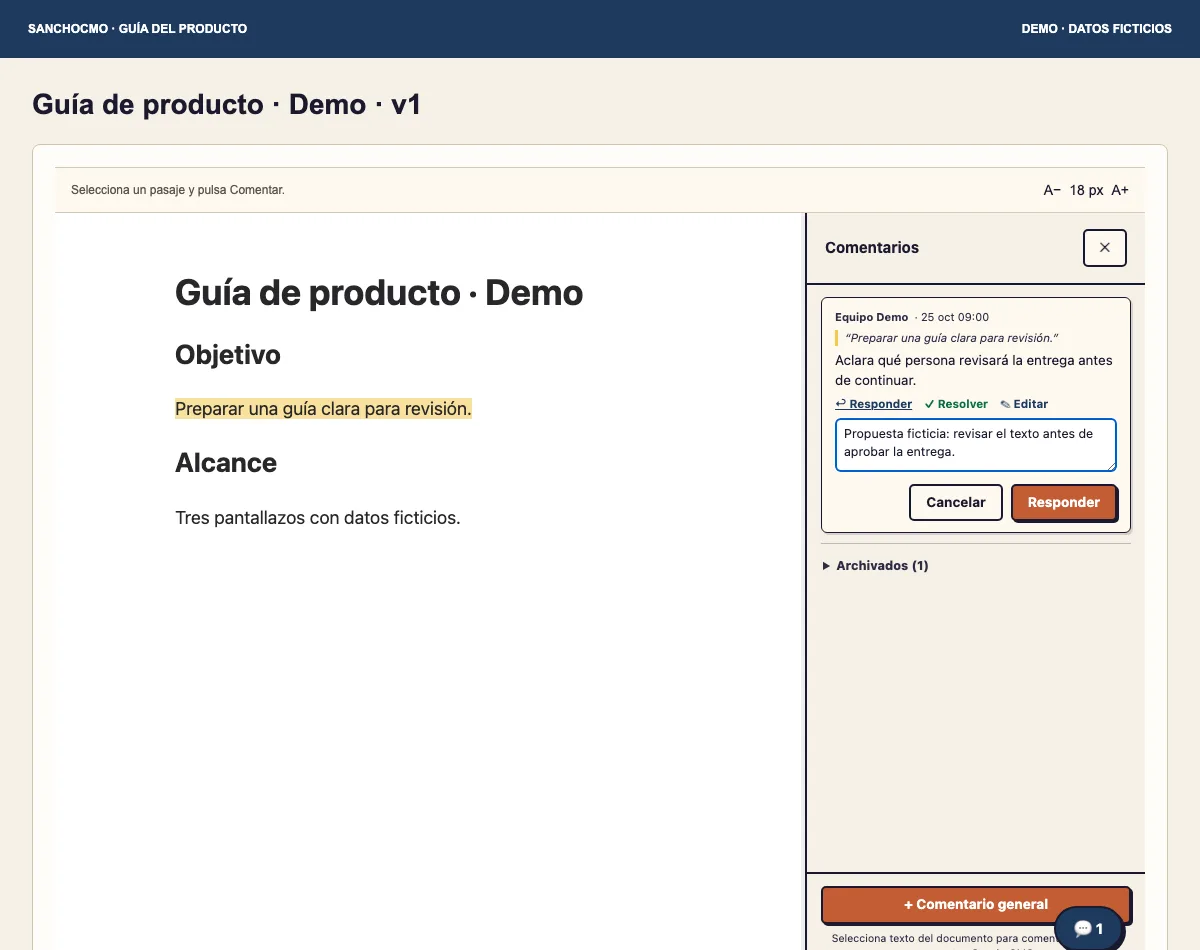
Select Responder (Reply) beneath the observation and keep the clarification there. This keeps the original request and responses together. Cancel if you are not ready to submit.
Commenting or replying does not edit the document. Once a change is agreed, someone with editing permission must update the text and check the result. Use the available Editar control in the reader and verify the content after saving.
3. Resolve when the request has been addressed
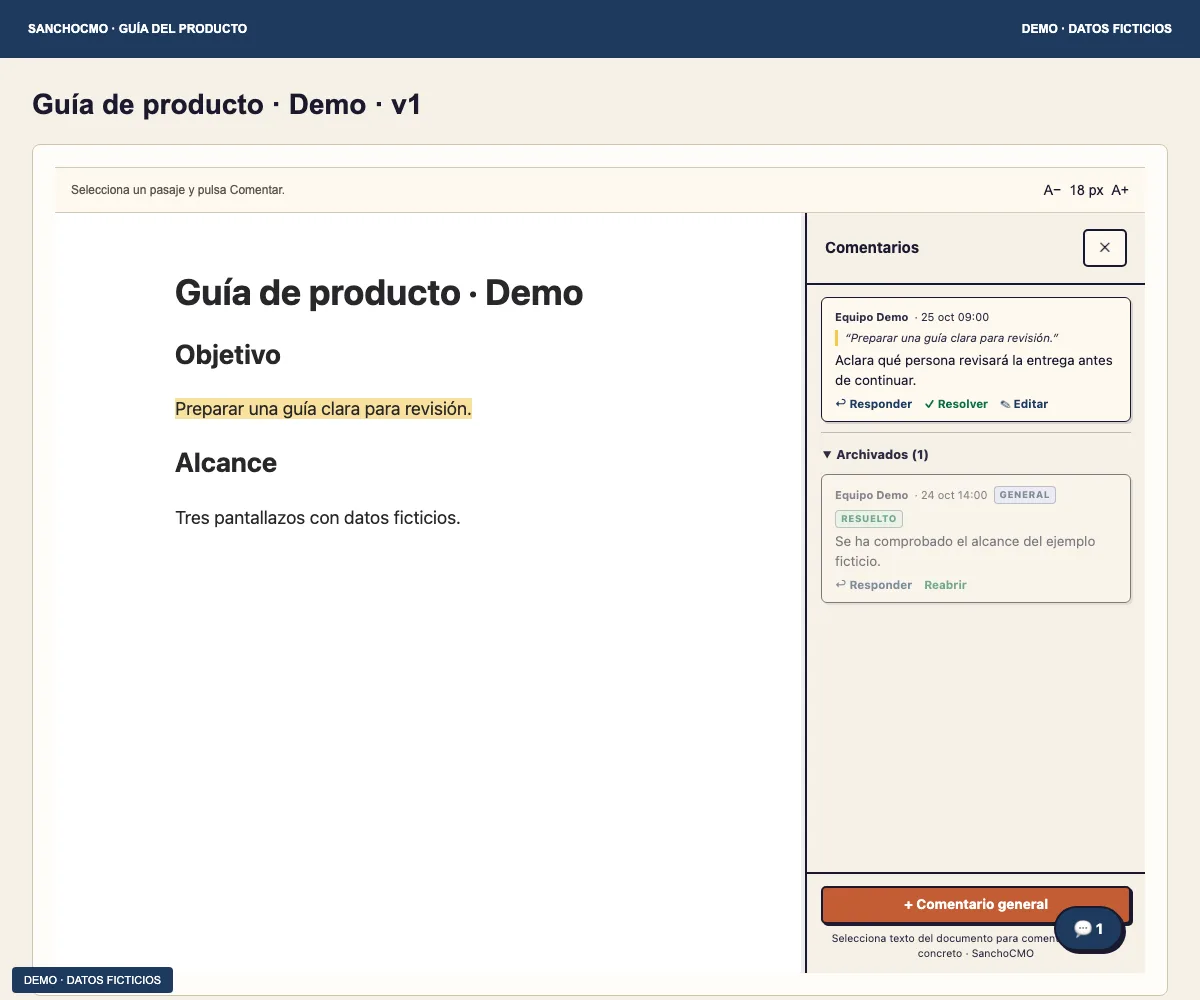
When the request has been addressed, select Resolver (Resolve) and confirm that the thread is no longer open. Archivados (Archived) groups resolved or archived comments. A resolved thread offers Reabrir (Reopen) when further review is needed.
Resolving does not apply the requested change, approve delivery or change task state. Before closing, check that the requested edit or verification has actually happened.
4. Understand states and permissions
- General: feedback is not attached to a particular passage.
- Resuelto (Resolved): the thread is closed as addressed and retained under Archived.
- Archivado (Archived): the thread is removed from the open list; this alone does not establish that its request was applied.
- Huérfano (Orphaned): the comment can no longer find its passage. Review the current text before interpreting the observation.
- Editar or Borrar (Edit or Delete): use only the controls your access provides. Do not assume every comment can be modified.
When feedback or a change is missing
Confirm the document and version you are reading. Check open and archived threads and retain any visible error. Do not describe a proposed comment as an applied text change.
To accept a complete delivery, also review its task using the tasks and agents workflow. Before sharing the review, check the link permissions.