Documentation / Documents
Share a document with the right permissions
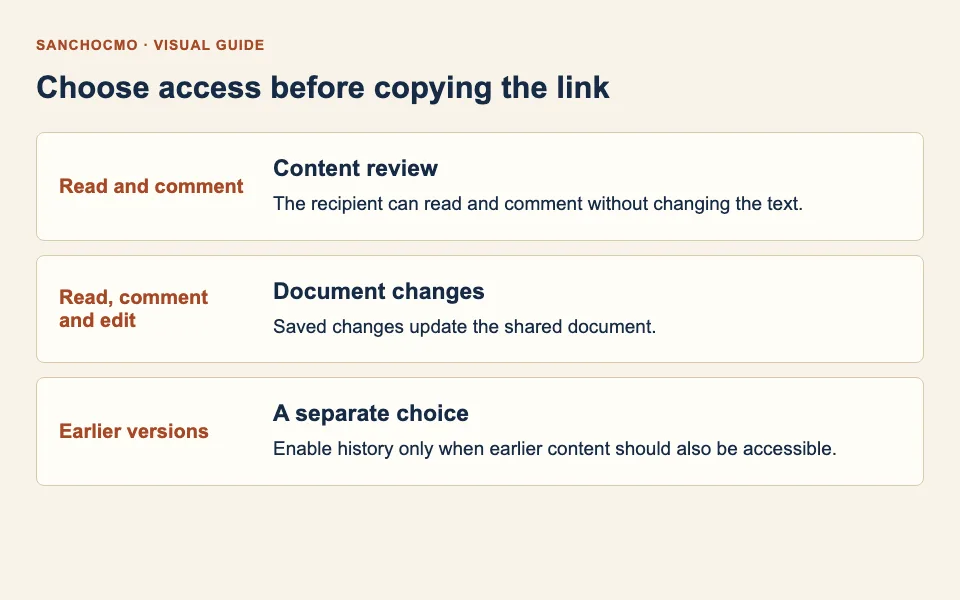
Choose whether the recipient can comment or edit, then separately decide whether earlier versions should be accessible before copying the link.
Before you start
Open the correct document in its reader. You need access and permission to share it. Editing and history options only appear when your account can grant them.
Screenshots show actual components with a fictional document. No access link was created or copied for the demo, and the clipboard was not changed. This guide explains the controls and their effects. The interface is shown in Spanish.
1. Open Compartir and choose access
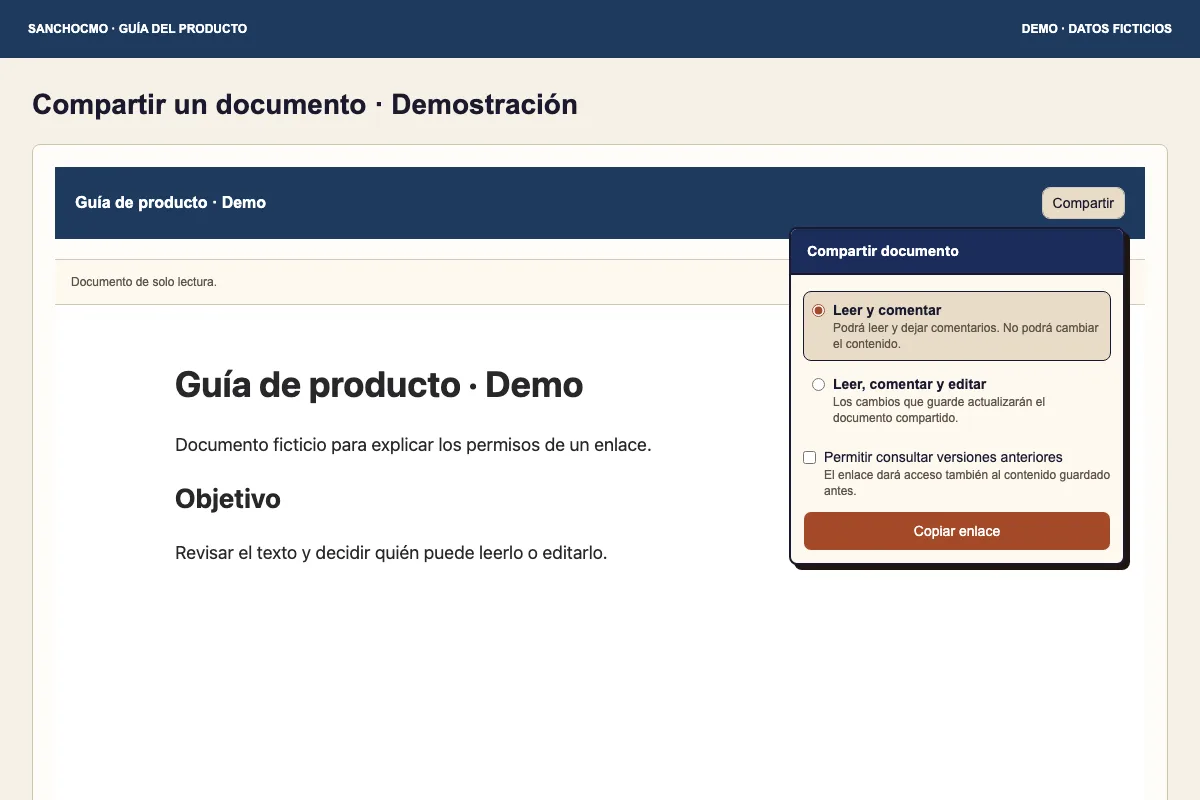
- Check the document title before sharing.
- Select Compartir (Share) to open the panel.
- Choose Leer y comentar (Read and comment) for feedback without allowing content changes.
Close the panel by clicking outside or pressing Escape to return without continuing. Opening the panel and selecting an option does not automatically copy a link.
2. Grant editing only when needed
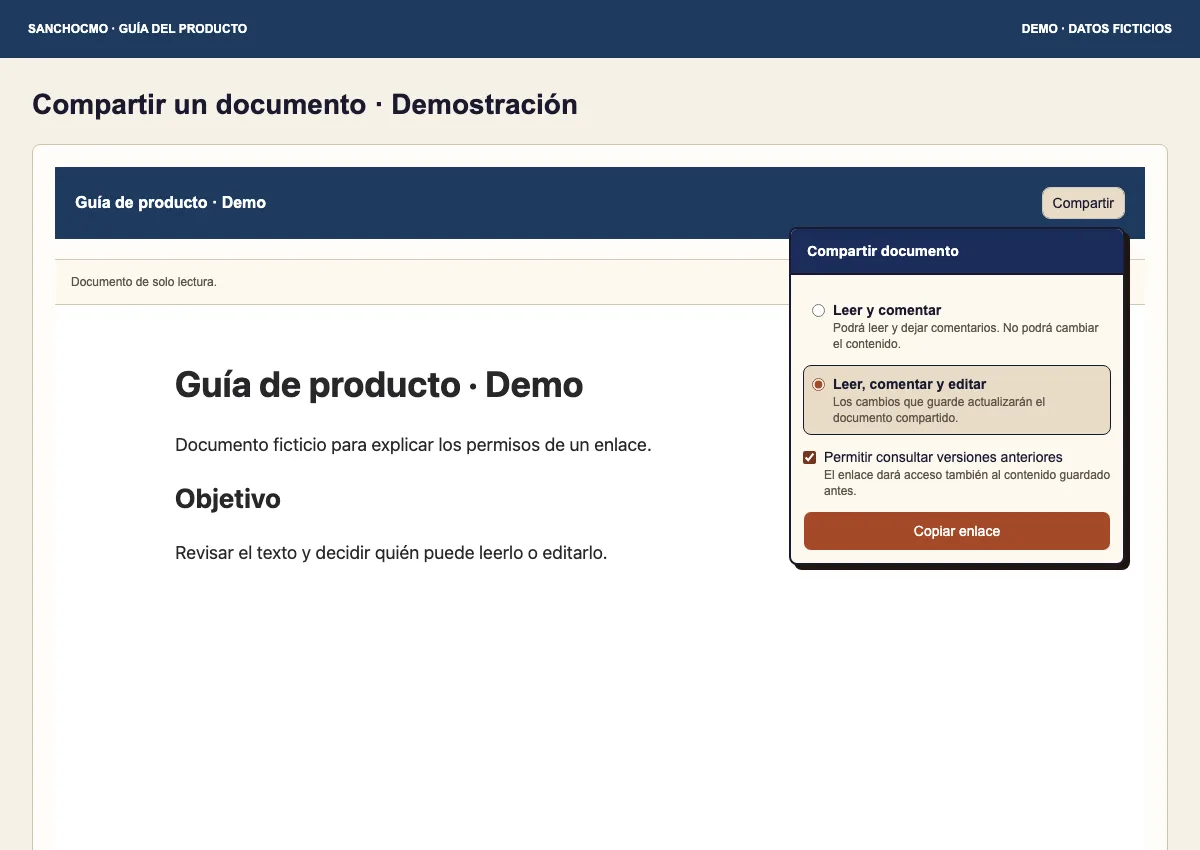
Leer, comentar y editar (Read, comment and edit) allows saved changes to update the shared document. Use it when you want the recipient to work on that document rather than only suggest changes.
Your choice applies to the link you are about to create. Choosing another option does not establish that earlier links were revoked. This guide does not describe revocation or expiration management.
3. Decide whether to include history
Permitir consultar versiones anteriores (Allow viewing earlier versions) also grants access to previously saved content. Enable it only when that is part of your intended review. Check whether earlier content contains information that is unnecessary for the recipient.
History is not an independent editable copy. Read the version-history guide for how those revisions are displayed.
4. Copy the link and check the result
- Review the access option and history checkbox.
- Select Copiar enlace (Copy link).
- Check the copied-link notice. An error means copying is not confirmed.
- Before sending, confirm the document and intended access.
Selecting an option does not establish that a link was created. Equally, a copying failure does not by itself establish that link creation failed. Keep the visible message and check the state before repeating blindly.
When some options are missing
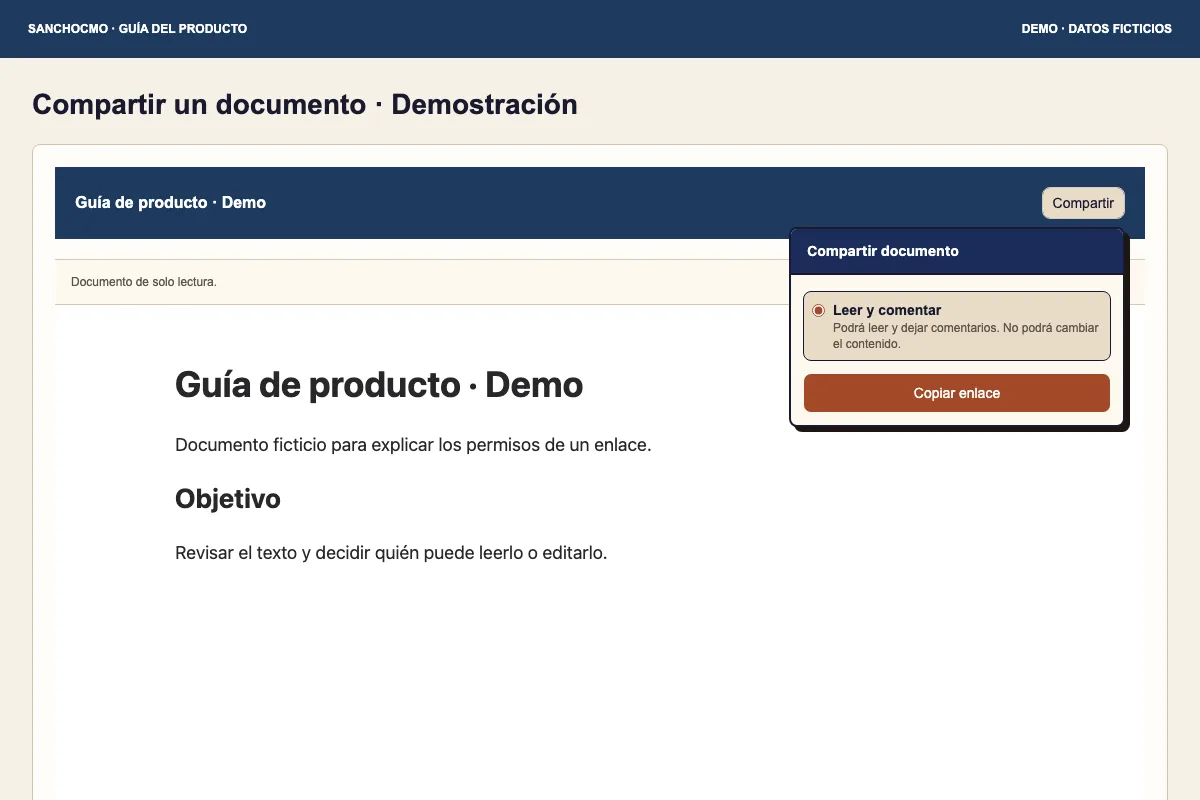
If you only see Leer y comentar, your account does not offer editing and history controls in this view. Do not assume additional permissions or reuse a higher-access link as a workaround. Ask the workspace administrator which access is appropriate for the review.
Sharing document access does not approve delivery or publish the document on a website. Review those actions separately using the tasks and agents workflow.
Check your result
You know which document is being shared, what the recipient can do and whether earlier versions are accessible. Copying has a visible result; any error remains an unresolved state.