Documentation / Documents
Edit a document and verify the changes
Open the editor, compare before and after, then confirm the text in the reader after saving.
Before you start
Open the document you intend to change and confirm its title and location. This guide shows an editable Markdown text document. Some tables or specialized documents are edited from their own view; do not force the general editor when the interface directs you elsewhere.
Screenshots show actual components with fictional text. Saving only updates a local demo copy. It does not change a real document or establish a production edit. Controls are shown in Spanish.
1. Open Editar and make a specific change
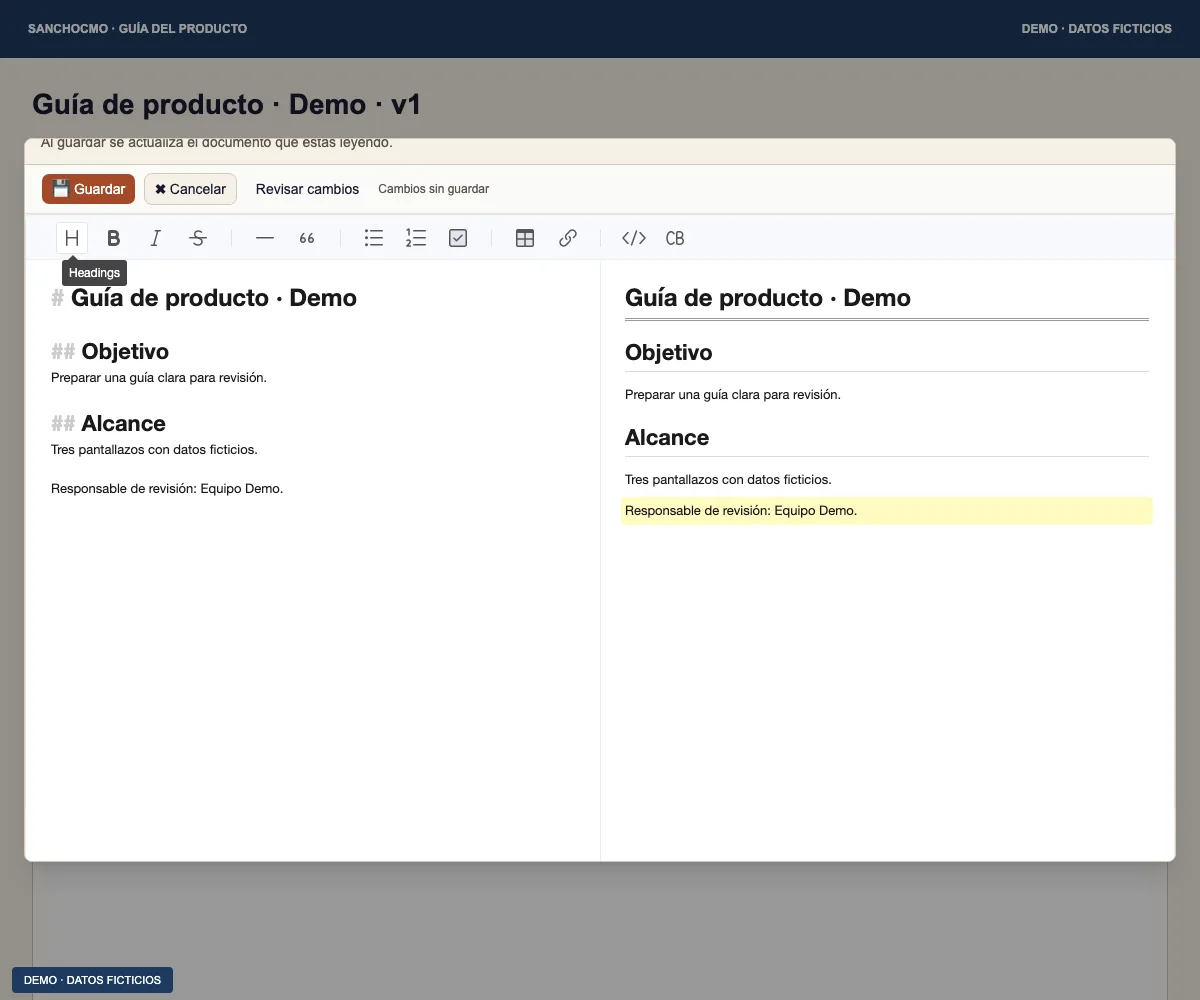
- Select Editar (Edit) in the reader when you have the required permission.
- Read the document and find the passage you need to change.
- Make a focused change. The example adds “Responsable de revisión: Equipo Demo”.
Cambios sin guardar (Unsaved changes) reminds you that saving is still pending. Seeing edited text inside the editor does not confirm that the current document has updated.
2. Compare Antes and Después
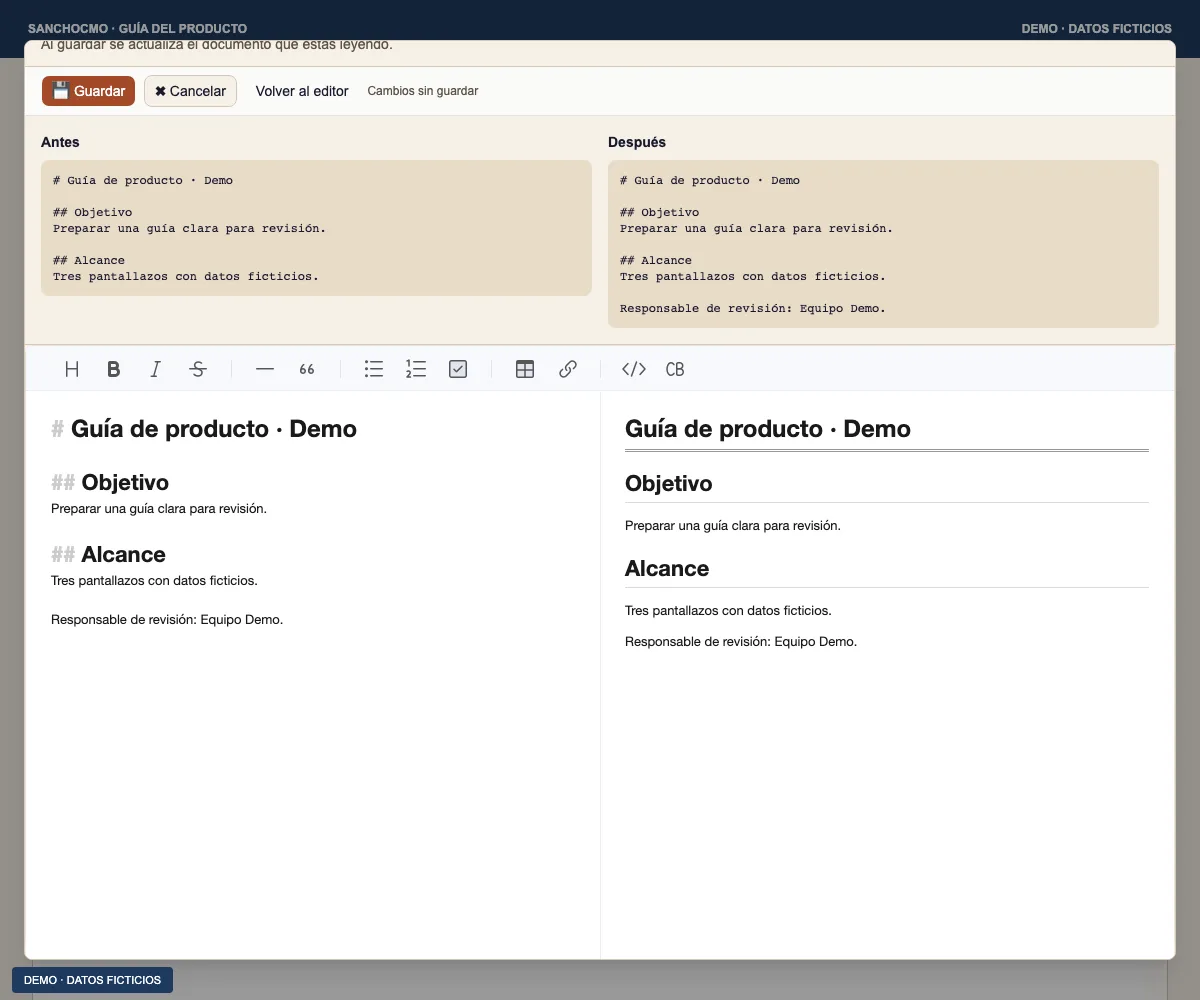
Select Revisar cambios (Review changes). Compare both columns: check the expected change under Después (After) and make sure other content was not removed. Select Volver al editor (Return to editor) to continue editing.
Reviewing changes does not approve delivery or publish anything. It compares your open draft with the text originally loaded by the editor.
3. Save and read again
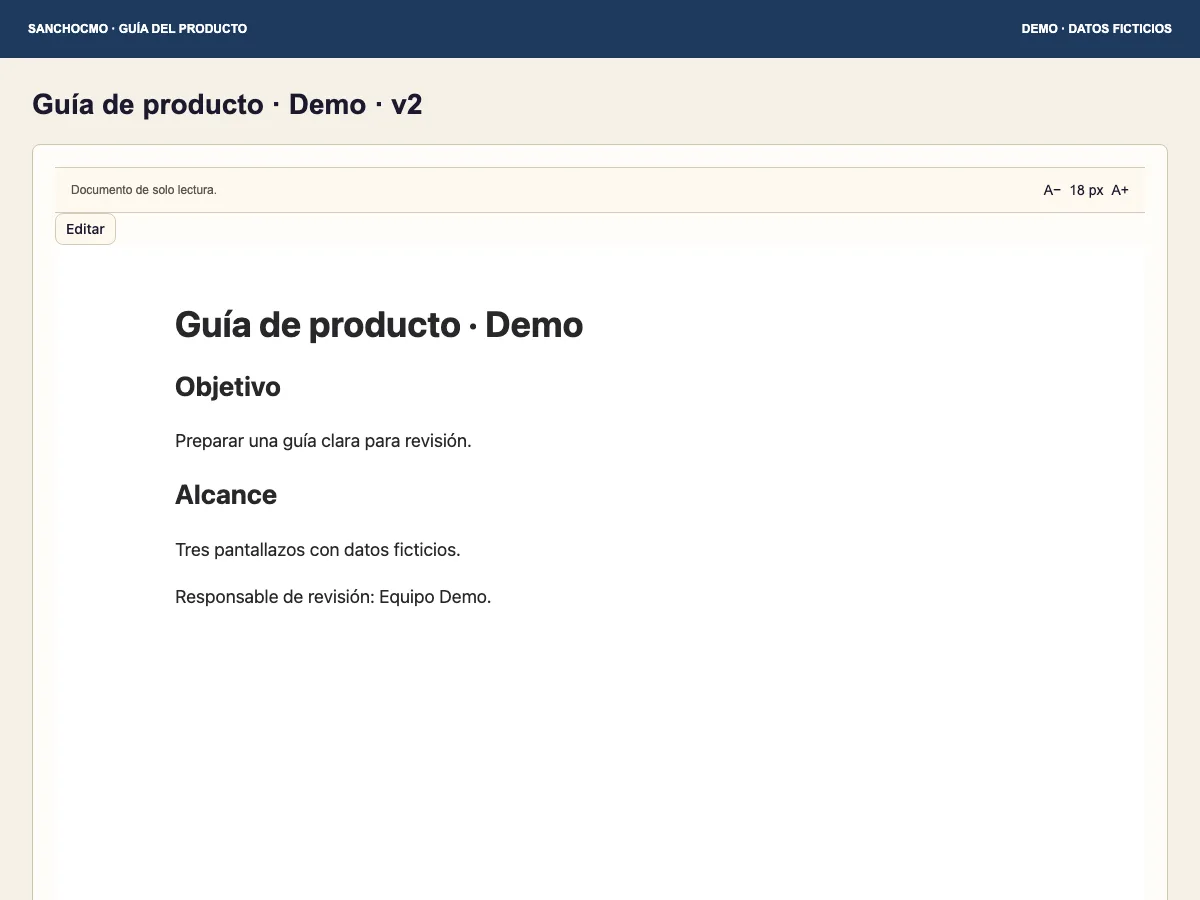
- When the change is correct, select Guardar (Save).
- Wait for completion and read any visible message.
- Back in the reader, find the changed passage and confirm it matches your intended text.
- Use version history if you need to compare an earlier revision.
A click on Save alone is not enough to establish the result. Reading afterwards can reveal old content, a different version or an operation still needing verification.
4. Cancel or respond to a warning
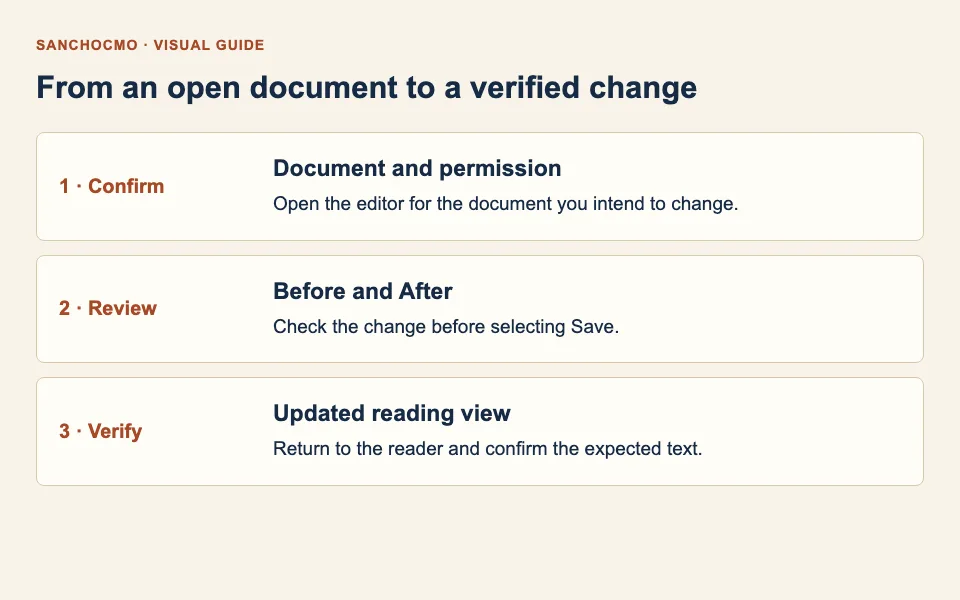
- Cancelar (Cancel): return without applying the draft. If unsaved changes trigger a warning, choose whether to keep editing or discard them.
- The document has changed: reload and review the current version before saving again. Do not blindly overwrite someone else’s change.
- Source saved but reading view not updated: keep the message and complete the indicated check or retry. Do not assume nothing was saved.
- Read-only or specialized editor: use the indicated surface or confirm your permissions.
Check your result
You can open the current document and point to the saved change. Keep anything unresolved marked pending, separate from task review or acceptance. Use the tasks and agents workflow to complete that review.