Documentation / Creators
Shared library and private follow-up
Find public profiles and open follow-up in the right workspace without confusing a channel lookup with managing a collaboration.
Before you start
Open the creator library in Partnerships. Confirm the workspace before reading contact information or managing a collaboration. Available controls depend on your access.
Screenshots use actual components with fictional “Estudio Aurora · Demo” and “Espacio Demo” data. Contacts, notes and figures are invented, rather than information from another real workspace. The Spanish controls are quoted in the steps.
1. Browse the shared library
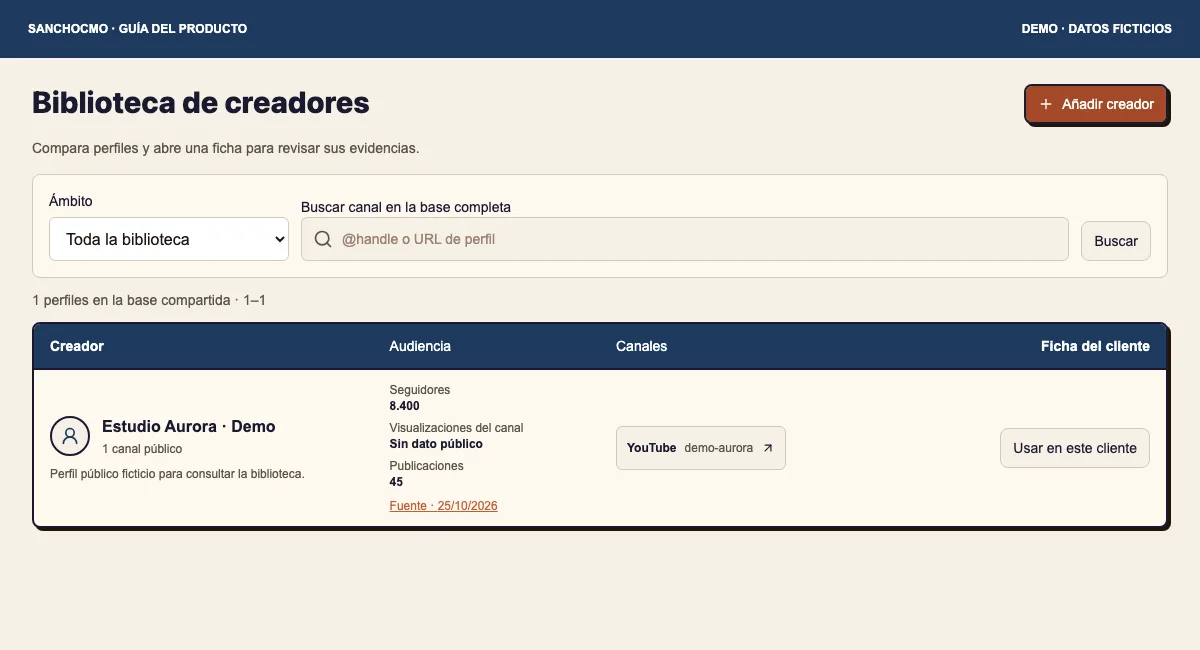
- Under Ámbito (Scope), select Toda la biblioteca (Whole library).
- Search by @handle or URL under Buscar canal en la base completa.
- Check the channel and source before comparing figures.
This catalog helps you discover and read public profiles. A channel appearing here does not mean your team has contacted, assessed or hired it. Read the public-profile guide for help with its metrics.
2. Switch to your workspace follow-up
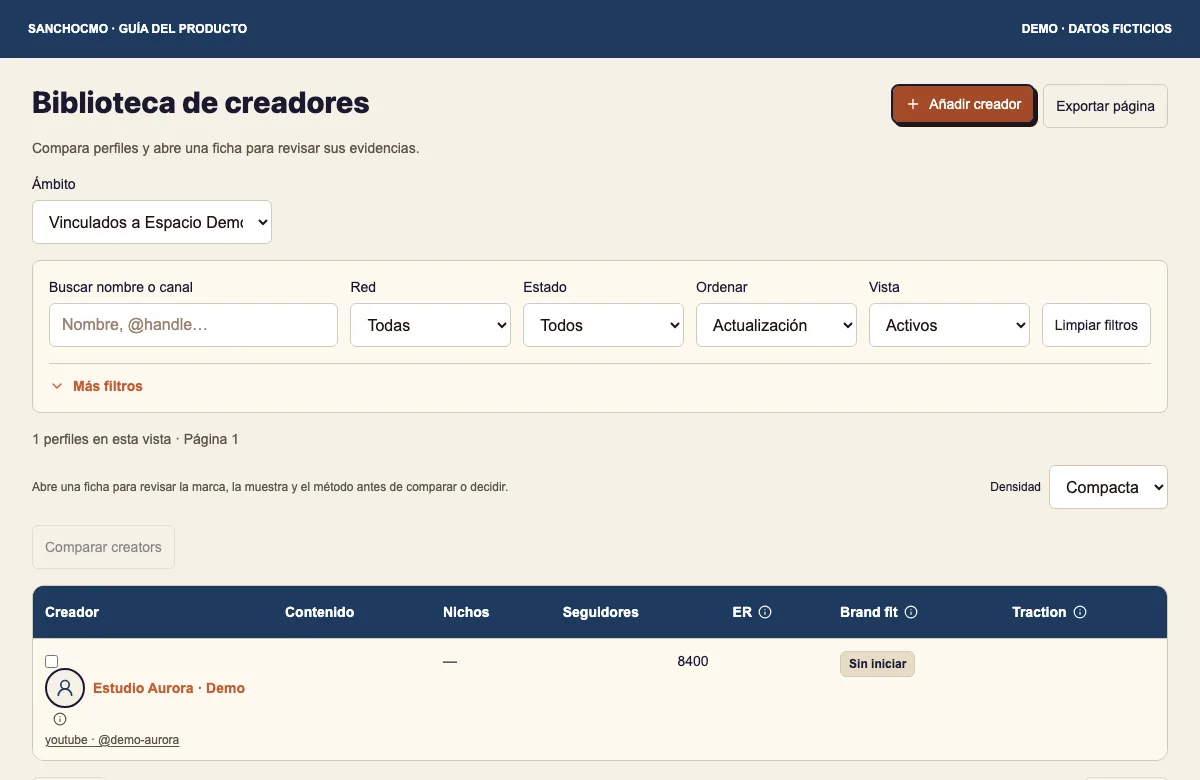
- Under Ámbito, choose Vinculados a (Linked to) followed by your workspace name.
- Check the workspace name and filters: search, platform, state and view can limit results.
- Open the creator record you need.
Changing this selector changes the query. On its own, it does not link a new profile or change a decision. Clear filters before concluding that a record is missing.
3. Review contacts and collaborations
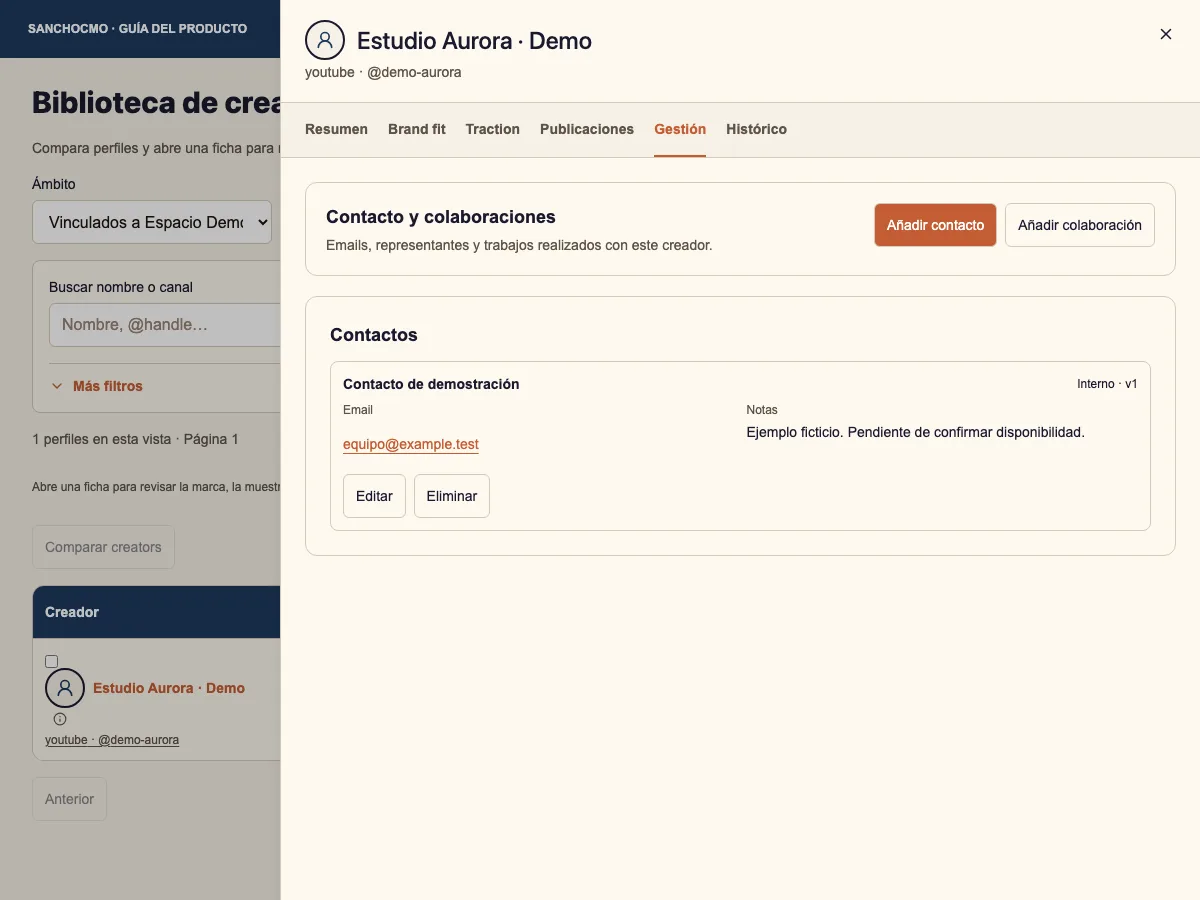
Inside the record, select Gestión (Management). Contacto y colaboraciones (Contact and collaborations) brings together available records for that creator in the workspace. Read the name, contact details, notes and visibility where shown.
This example is marked Interno. That label matters when determining who can read a record. Do not assume all follow-up information has identical permissions or belongs to the shared public profile.
4. Use a profile in the correct workspace
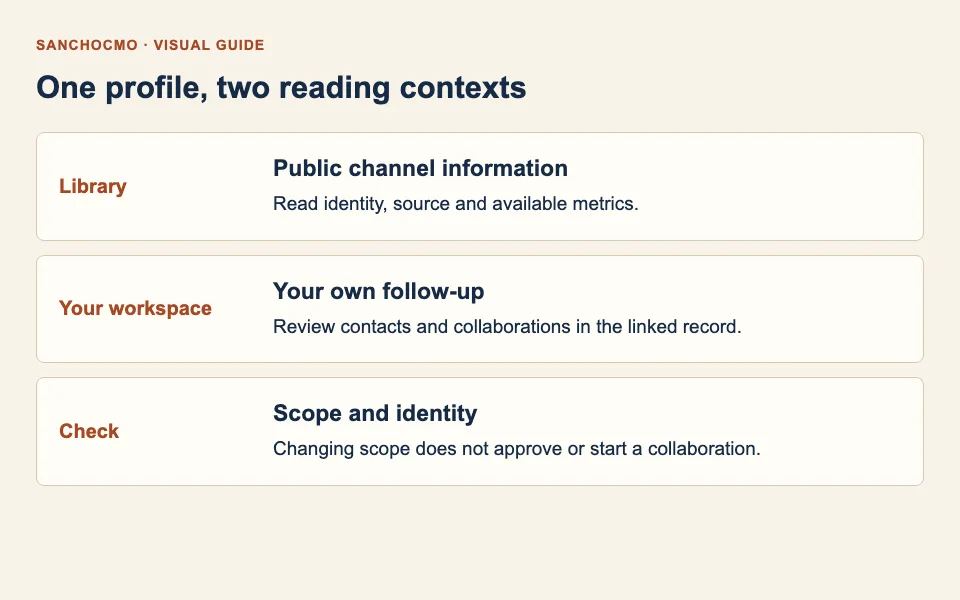
In the shared library, Usar en este cliente (Use in this client) continues to the record for that workspace. An existing record opens directly; otherwise, a form may appear to add the profile. Check channel and workspace before saving. Opening a form does not save it.
Follow-up is also separate from approval. Review Brand fit evidence when you need to decide on an assessment.
When a record or control is missing
- Profile missing: check scope, filters and platform.
- Follow-up inaccessible: confirm workspace access. A public profile does not grant access to every workspace record.
- Contacts or notes missing: keep the empty state visible. Do not copy another workspace’s information to fill it.
- A form opened by mistake: cancel it and return to browsing before saving changes.
Check your result
You can identify which information is public, which follow-up belongs to your workspace and which decision remains pending. Reading or linking a record does not by itself start a collaboration.